 CareCard
Tracking Progress
How to read the Insights page to see where your whole institution stands, instead of checking campuses and programs one at a time.
Reviewing Institution Access Requests tells you about one request. Insights tells you about all of them — across every campus and program in your institution.
Insights is on your side menu. It follows the year and term selector, so everything you see is for the year and term you picked.
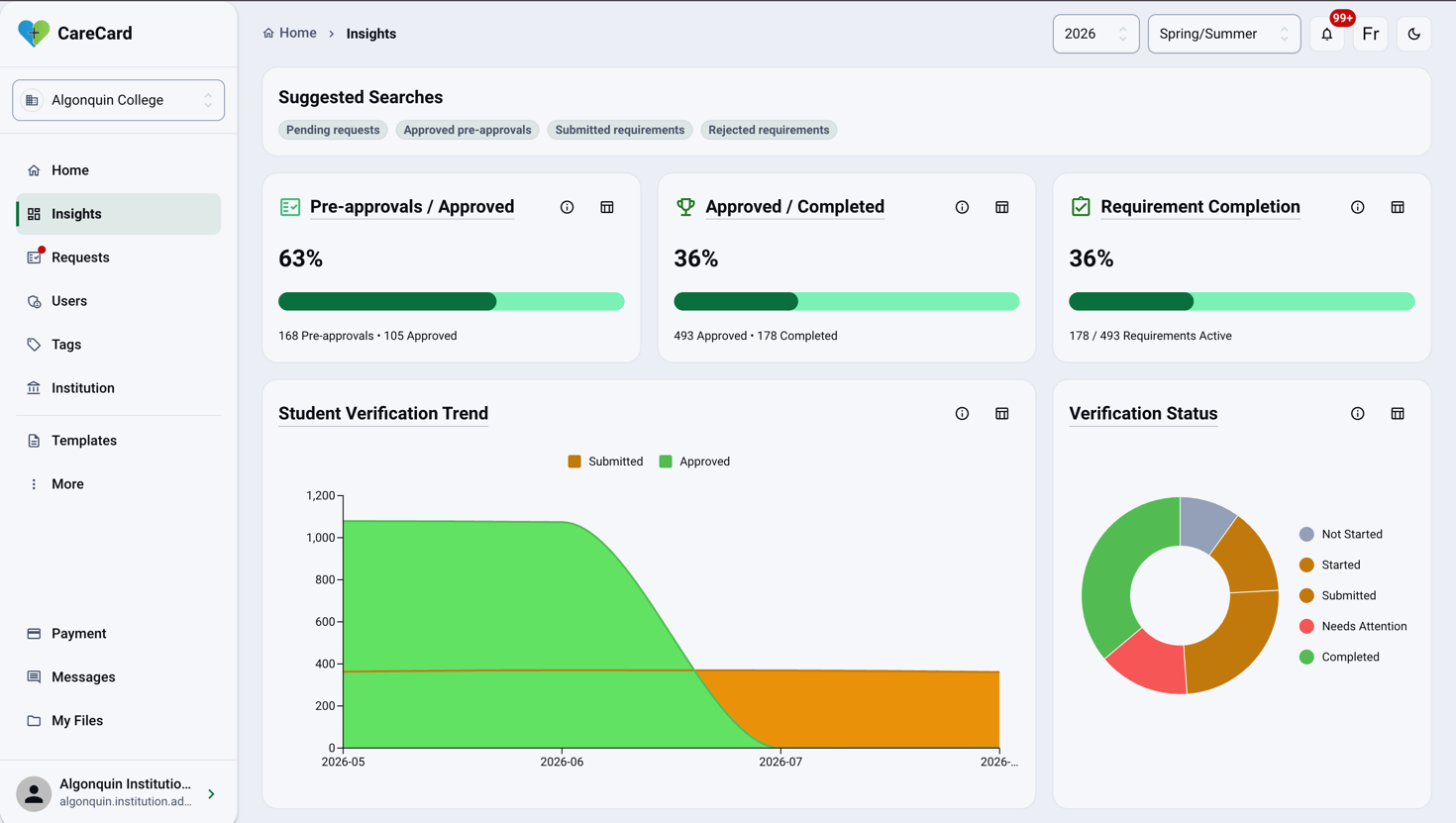
Suggested Searches
The chips at the top are Suggested Searches. Selecting one filters what you see on the Insights page — it doesn't open the Requests or verification queues.
What Insights Shows
Insights has summary cards (such as Pre-approvals / Approved and Requirement Completion), trend and status charts (such as Student Verification Trend and Verification Status), and tables that list the actual students behind the numbers (such as Pending Students and At-risk Students).
Each card, chart, and table has an info icon that opens an About panel explaining what it counts. Use View Details to open that visual's own page.
To compare terms, switch the year and term selector — Insights shows one term at a time, not two side by side.
What to Do With the Numbers
- Many students Not Started at one campus? Message the people there, or flag it to that campus's admin.
- Submitted going up, but Approved staying flat? The documents are waiting on CareCard reviewers, not on you or your admins.
- Lots of pre-approvals but few Approved? A roster loaded, but those students haven't signed up yet — worth a nudge to that program's coordinator.
- One campus lagging the others? Insights spans your whole institution, so this is the place that comparison shows up — a campus admin or coordinator sees only their own slice.