 CareCard
Tags
Create tag categories and values, assign them to people on the Users page, and find tagged people by searching.
Tags let you add a label CareCard doesn't already track — like a semester, rotation, or level — so you can group people by it. You make tags on the Tags page and add them to people on the Users page.
The Tags Page
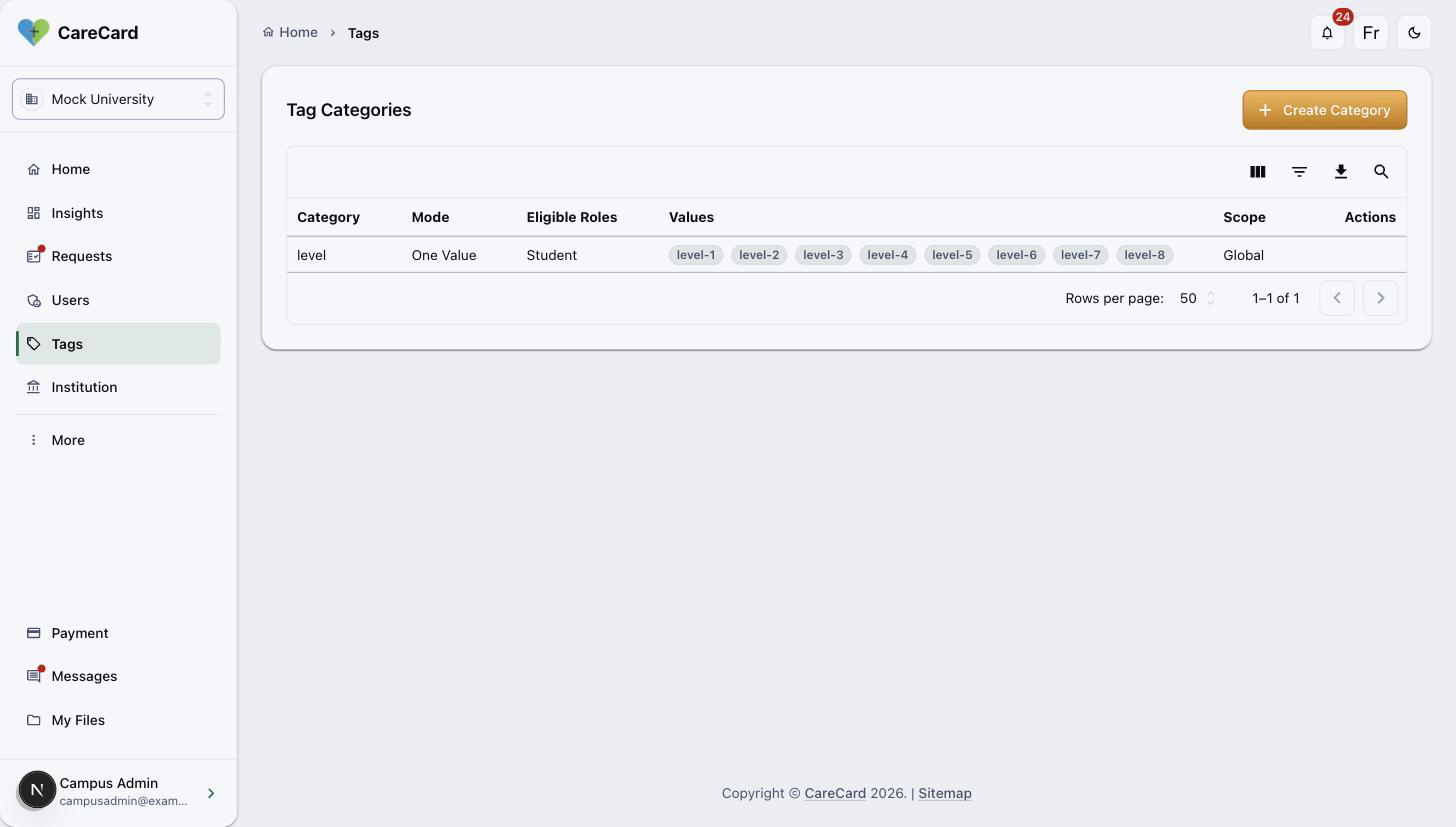
Tags opens the Tag Categories table. A category is the question (for example, level); its values are the answers.
Creating a Category
Select Create Category to open the Create Tag Category dialog:
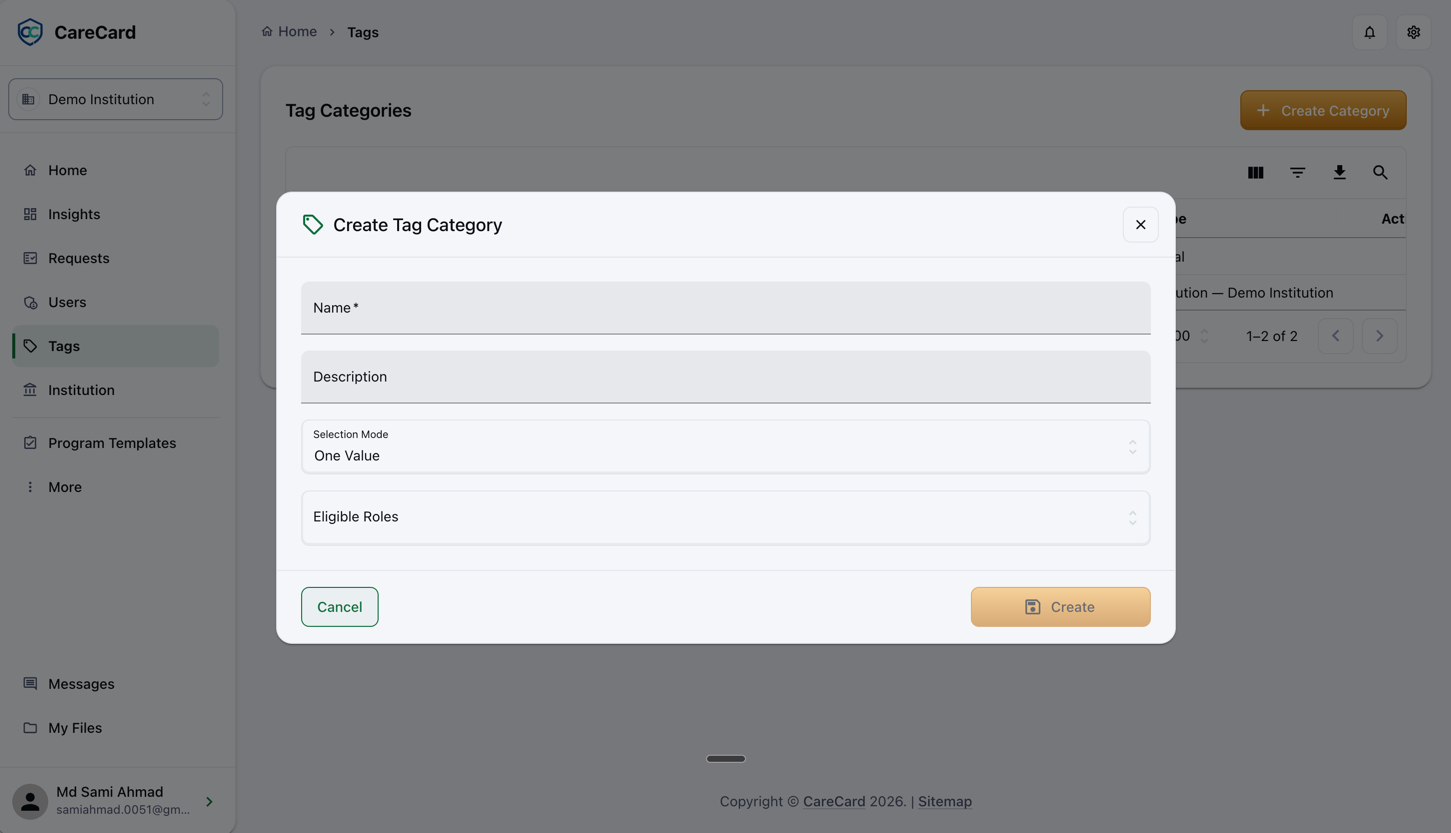
Fill in:
- Name — Required.
- Selection Mode — One Value (a person holds one) or Multiple Values (several at once).
- Eligible Roles — At least one role that can get the tag. Required; limit it to Student to keep the tag off staff records.
Add an optional Description, then select Create.
Selection Mode is a structural choice — set it before you assign the tag. Don't switch a category from Multiple Values to One Value once people already hold several.
A category's ⋯ menu offers Edit Category, Manage Values, and Archive Category.
Managing Values
Open Manage Values from the category's ⋯ menu. A new category reads No values yet. Select Create Value, then give it a Value (required), an optional Description, and a Display Order (lower numbers show first). Each value row has its own edit and archive icons.
Scope
A category's Scope sets how widely it's used — Global (all of CareCard), Institution, Campus, or Program. You don't pick it; it comes from where you create the category.
Archiving
Archive Category retires a whole category; a value's archive icon retires one value. You can't archive anything still assigned to someone — remove it from them first.
Assigning Tags on the Users Page
You assign tags on the Users page, not the Tags page.
- On Users, checkbox-select the people you want to tag.
- Open the Action menu and choose Assign Tags.
- In Assign Tag to Users, pick a value from the Tag Value list.
- Check the roles that should receive it.
- Select Review, confirm, then Assign Tags.
To remove a tag, choose Remove Tags from the same Action menu and confirm.
Finding Tagged People
A person's tags show in the Tags column on the Users page. The search box covers tag values, so type a tag to list everyone who has it — handy for gathering a rotation or semester before messaging them.