 CareCard
Managing Your Campus
What the Institution page shows a Campus Admin, and how to create programs and add terms.
The Institution page is where you manage the campuses you administer. It shows your institution at the top and your campuses below, and it's where you create programs and add terms.
What the Institution Page Shows
The page shows your institution's profile, then a Campuses list. You see only the campus — or campuses — you administer, not the institution's other campuses. Expand a campus row to see its programs, each program's coordinators, and an actions menu per program.
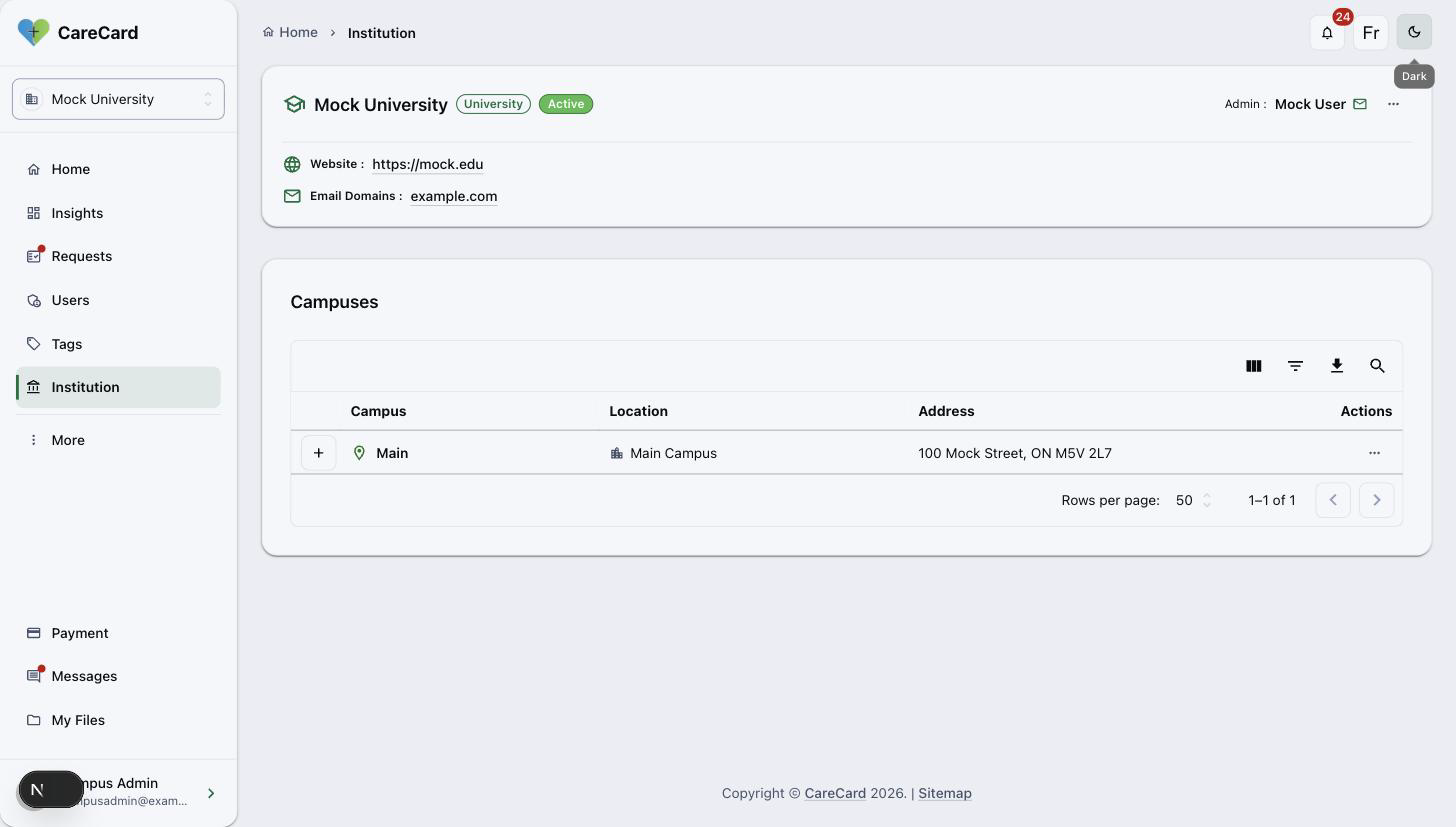
Unlike a Program Coordinator, you can create programs and add terms here. Creating a new campus or a new institution is CareCard staff only.
Create a Program
On a campus row, open the actions menu (⋯) and select Create Program. Enter the Program Name, pick a Start Year and Start Term, then select Create Program. The program is created under that campus with its first term.
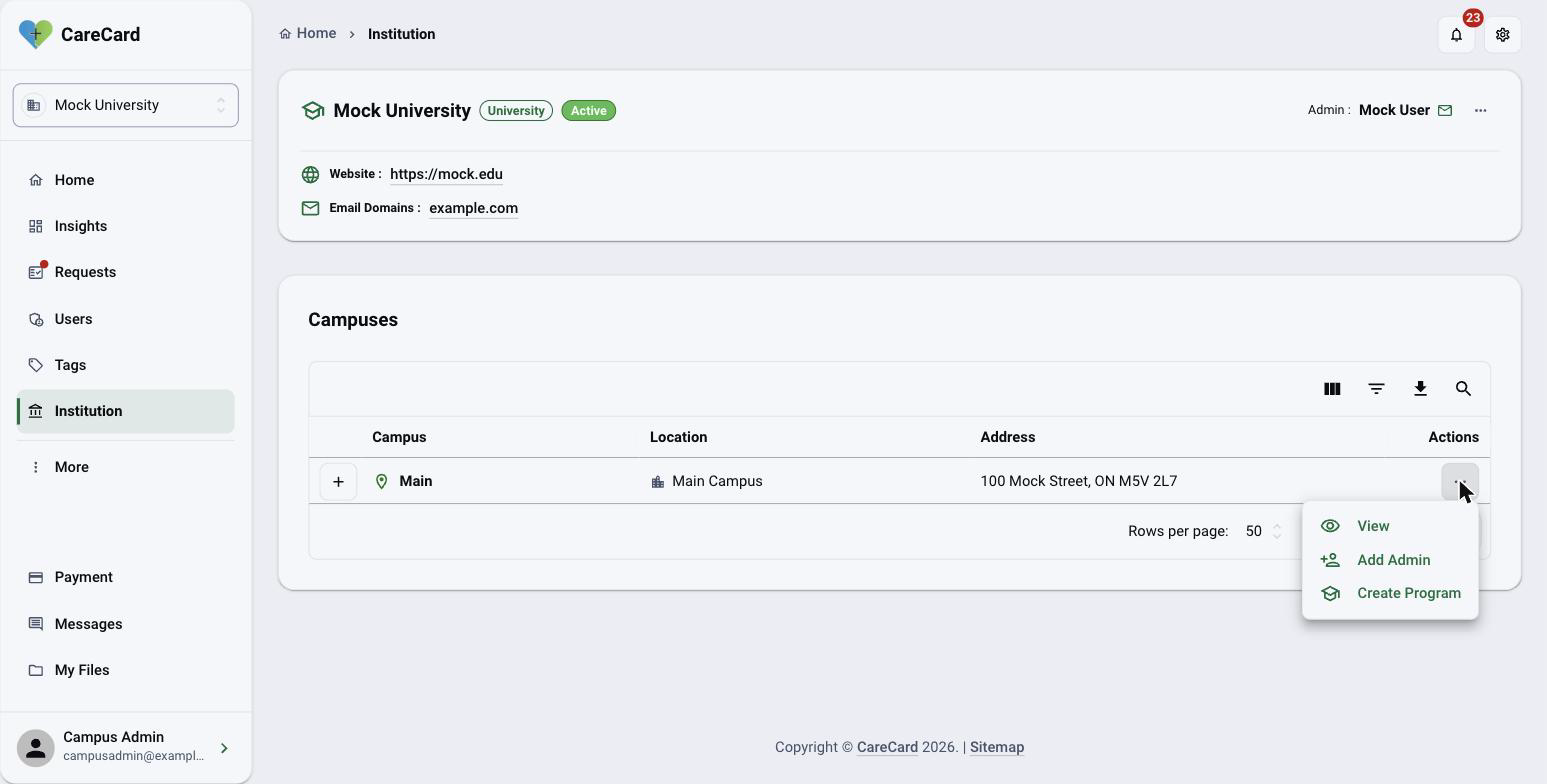
Each program then has its own actions menu (⋯) on its row. Edit updates the name and the optional code, description, and program length; Delete removes a program.
Deleting a program removes it for everyone who depends on it — assigned coordinators and students whose access runs through it. Make sure it's truly unused first.
Add Terms
A program needs at least one term before students, pre-approvals, or templates can attach to it. On the program's actions menu (⋯), select Add Terms. Pick a Year and Term (Fall, Winter, or Spring/Summer), select Add to add it, repeat for more, then select Add Terms to save.
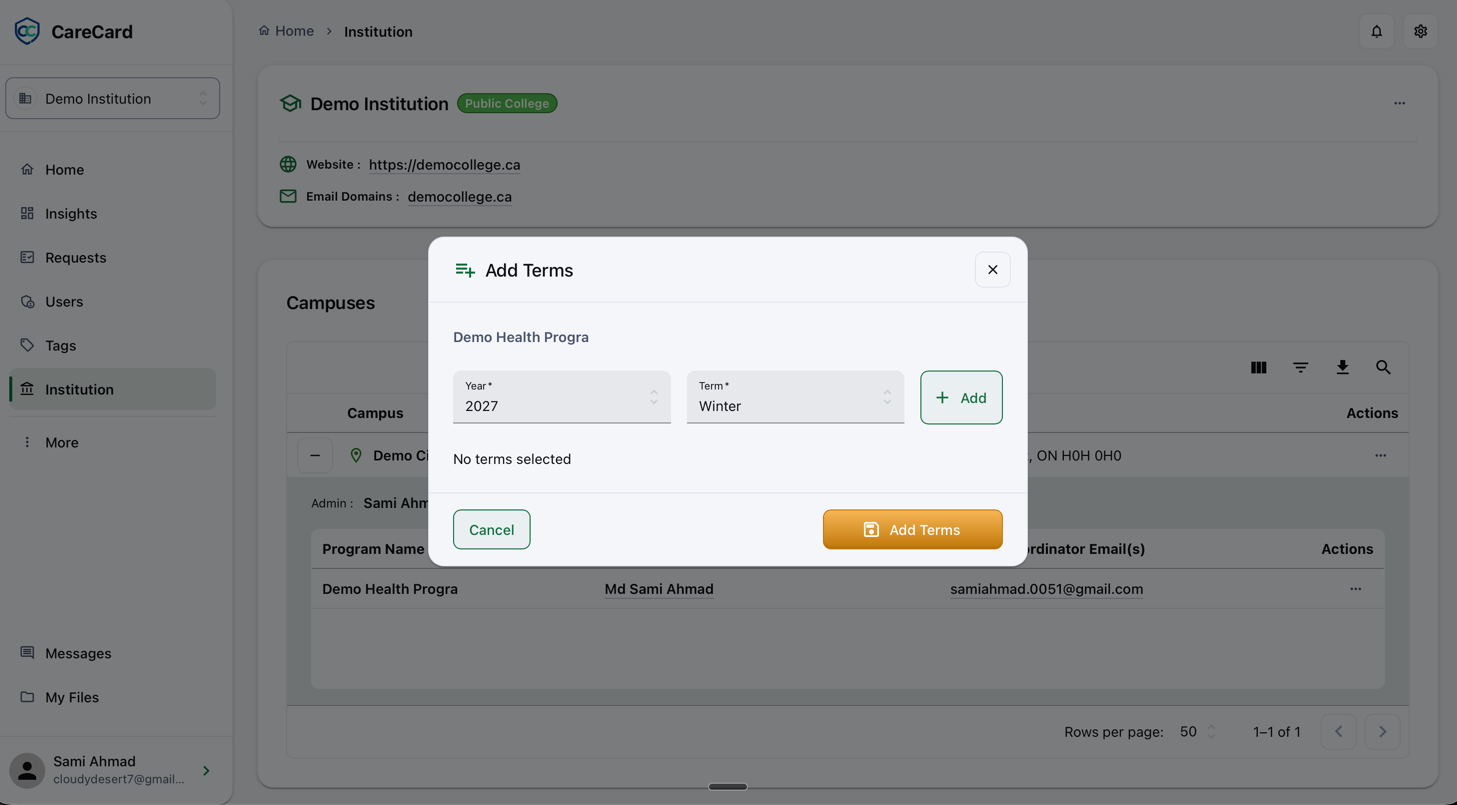
A Program Coordinator can't add terms. If a coordinator at your campus reports a missing term, add it here.
Next
Once your programs and terms are in place, assign someone to run each one. See Adding Admins and Coordinators.