 CareCard
Your Institution
What the Institution page shows you, and how to invite another coordinator to your program.
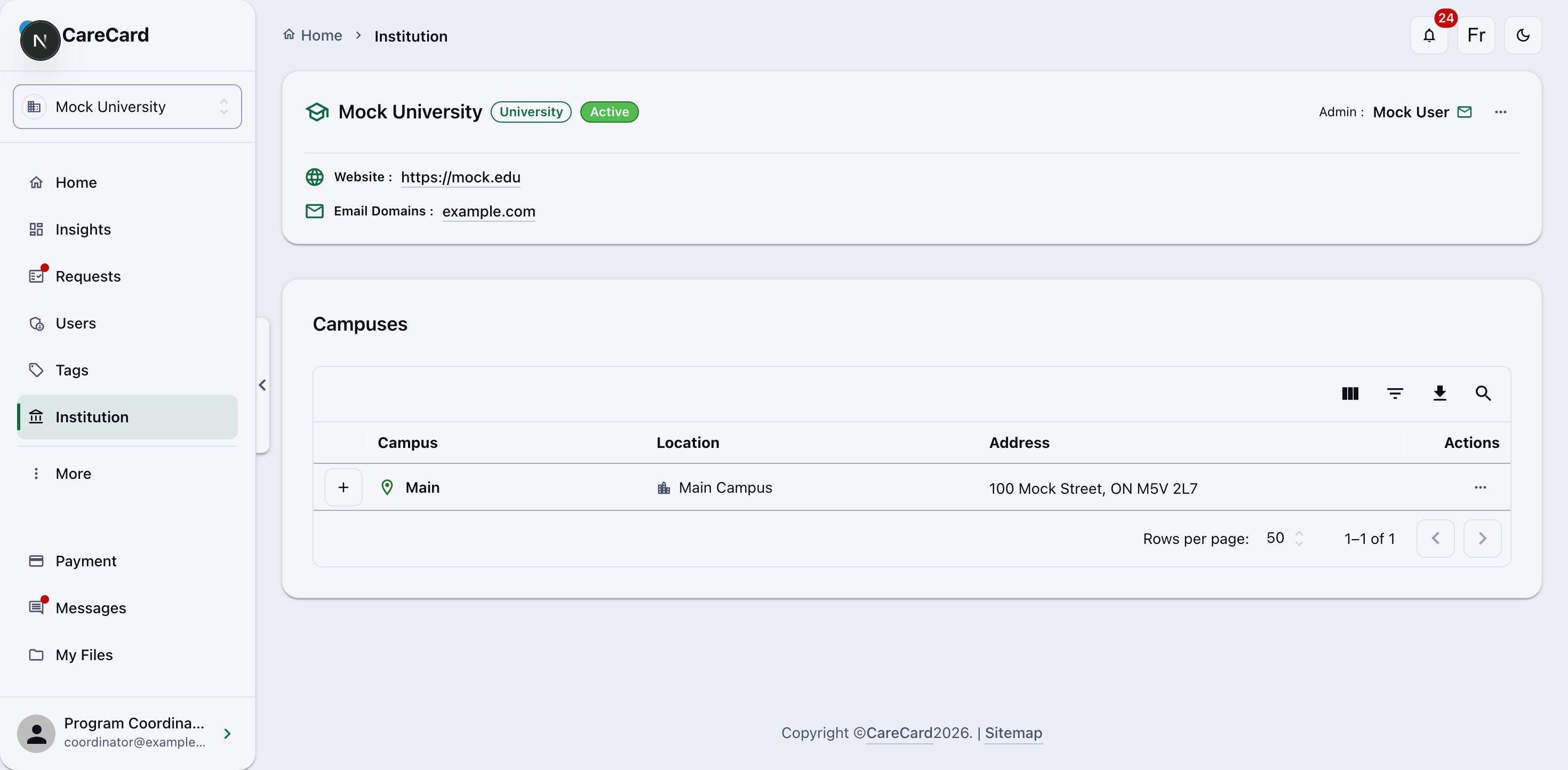
The Institution page shows your institution and the parts of it you coordinate. You can view its details here and invite another coordinator to your program.
What the Institution Page Shows
Institution shows your institution's type, status, administrators, website, and email domains, plus its campuses with their locations and addresses. You see only the campuses and programs you coordinate.
Invite Another Coordinator
You can invite another coordinator to a program you coordinate. Open the actions menu (⋯) on the Institution page and select Add Coordinator. The Invite User to Role dialog opens:
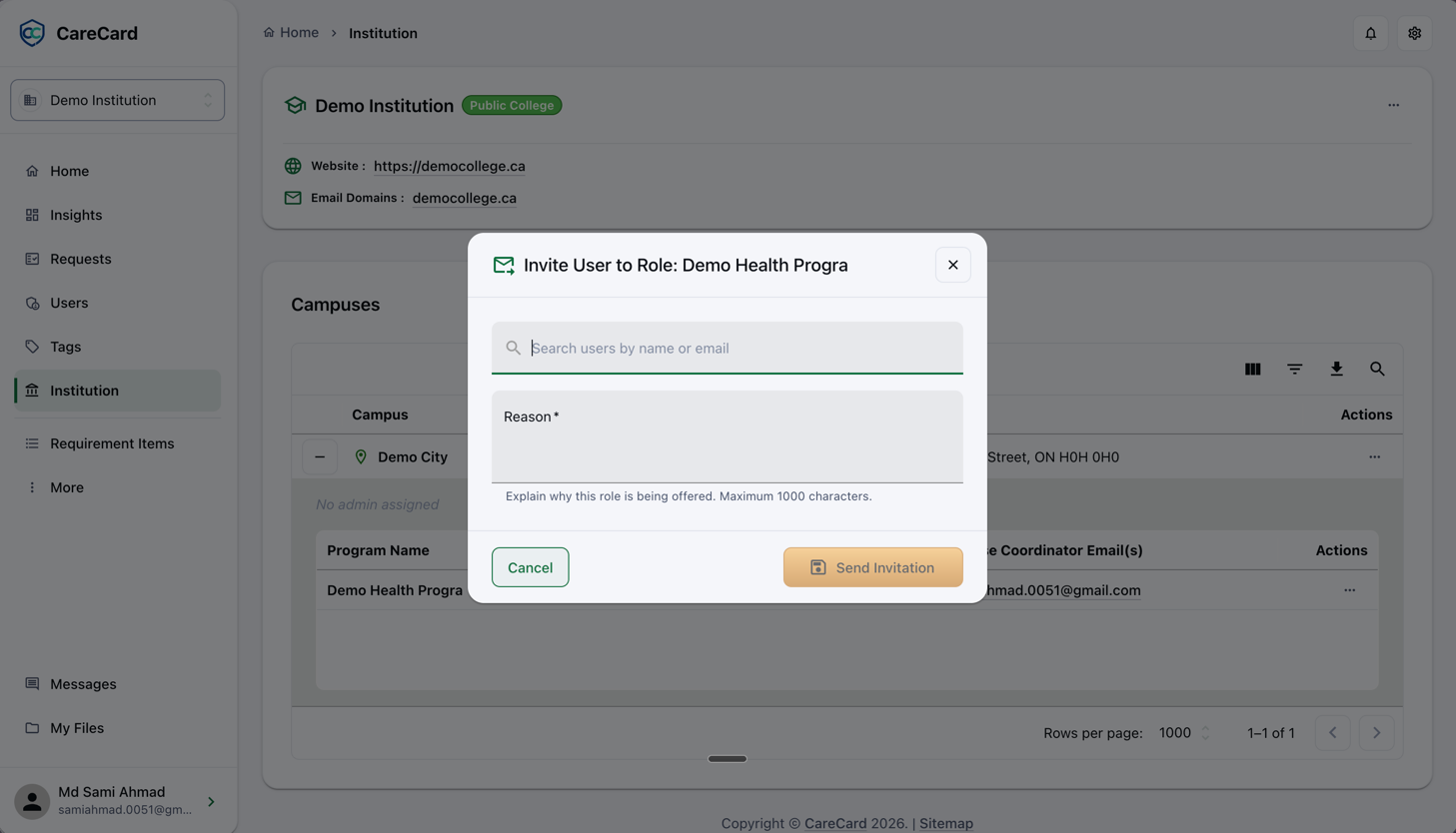
Search for the person by name or email, write a short Reason, then select Send Invitation.
Because another coordinator is the same role as you, a Role Assignment Expiry step appears next — pick a Role expiry date (up to one year out) and select Continue. The role ends automatically on that date. The person must accept the invitation from their Home dashboard before the role turns on.
What You Can't Change Here
Adding Campus Admins, creating programs, and adding terms aren't coordinator actions — those belong to Campus and Institution Admins. Creating a campus or a whole institution is done by CareCard staff.