 CareCard
Messages
Start a support conversation, ask about a specific requirement, and leave a conversation.
Messages is how you reach CareCard's support team from inside your account. A question about a document stays attached to your record instead of getting lost in email.
The Messages Page
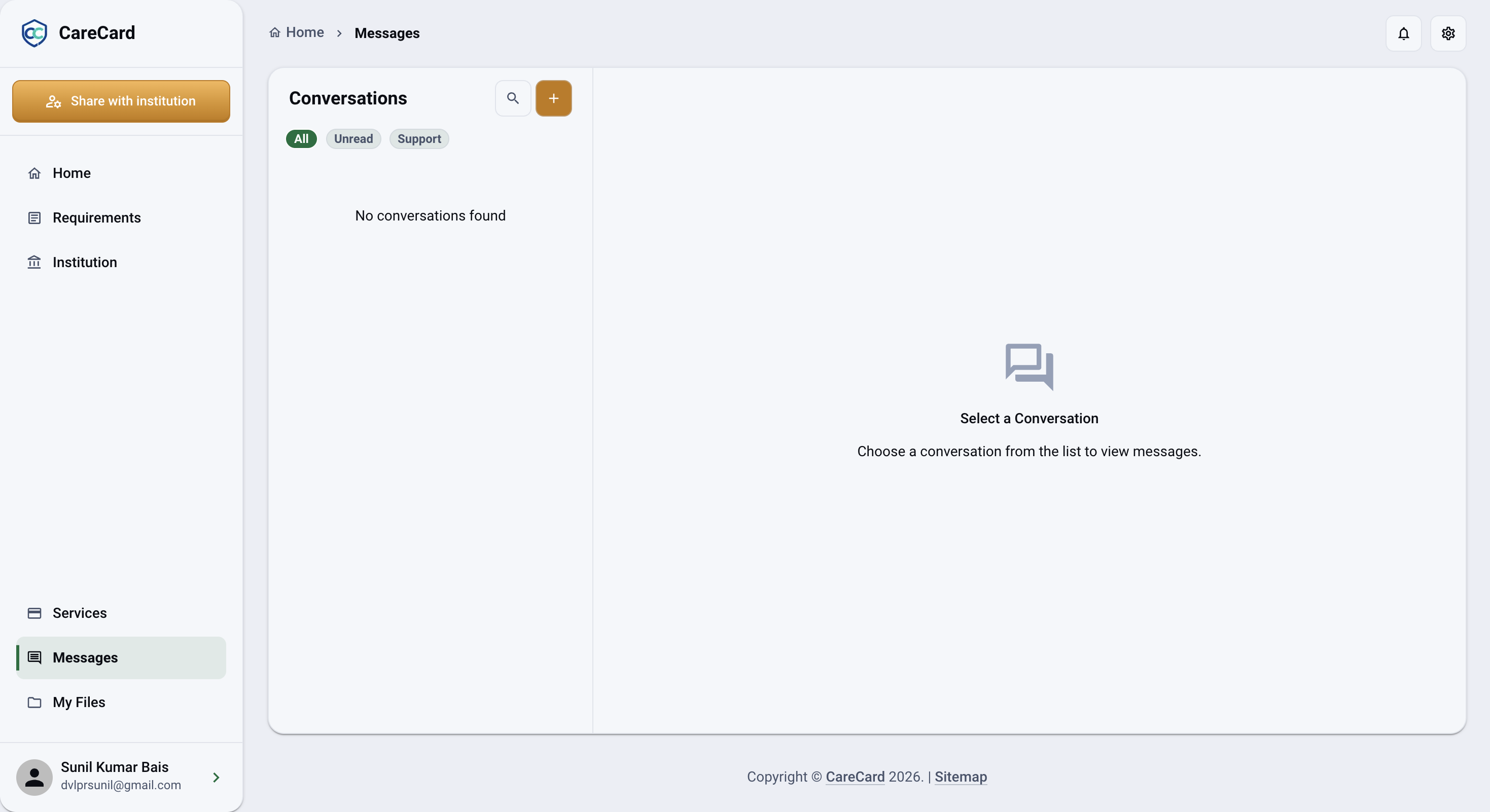
Open Messages from the Side Menu. Your Conversations run down the left:
- Filter by All, Unread, or Support.
- Search by name.
- Select a conversation to read it on the right.
A new account starts empty — the right side reads Select a Conversation, and an empty list reads No conversations found.
Start a Conversation
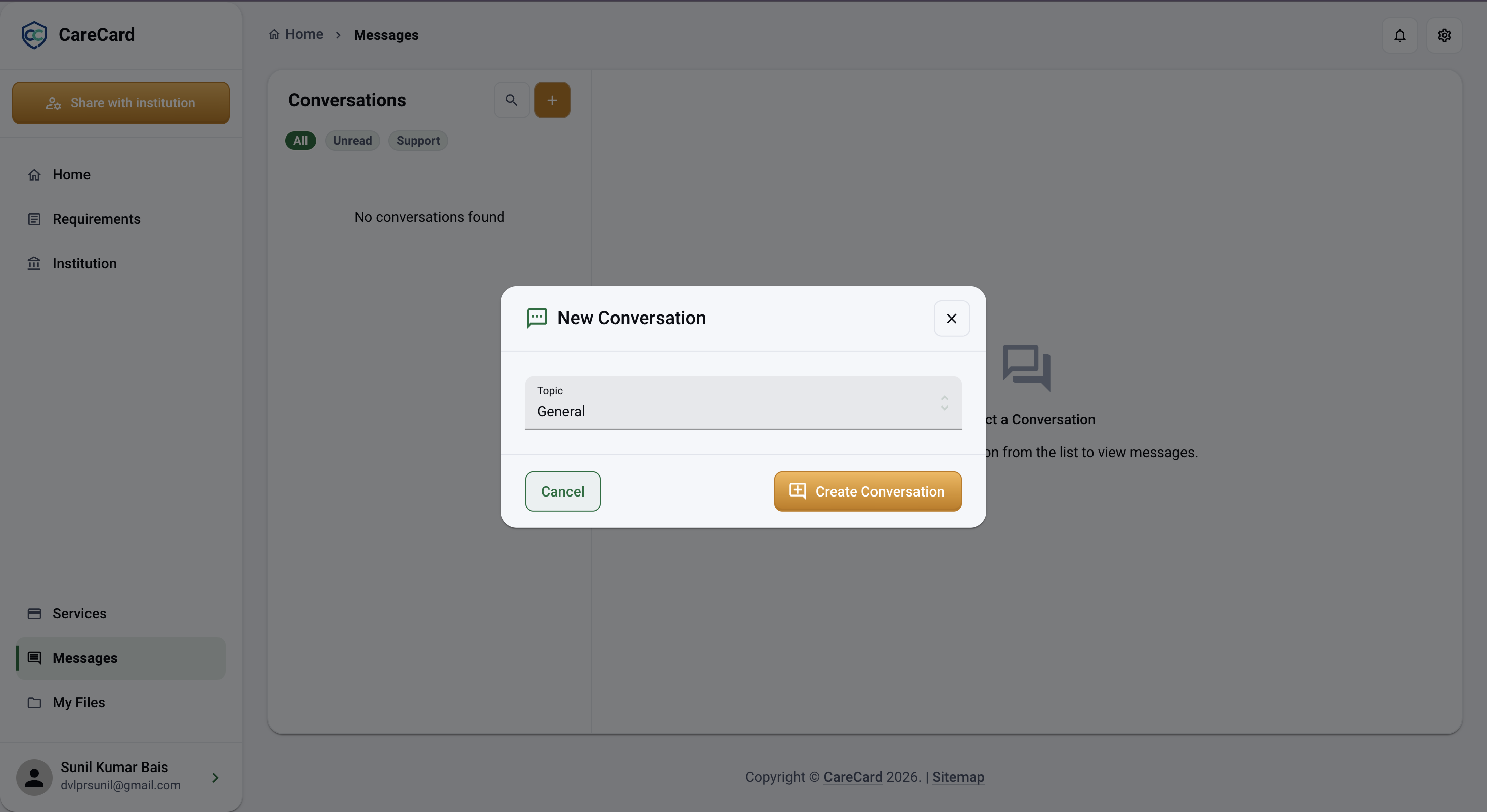
Select New, choose a Topic, then select Create Conversation:
- General — Anything that isn't about one specific document.
- Requirements — Adds a Requirement field so you can name the exact one.
- Technical Support — The site itself, such as something that won't load or upload.
Send a Message
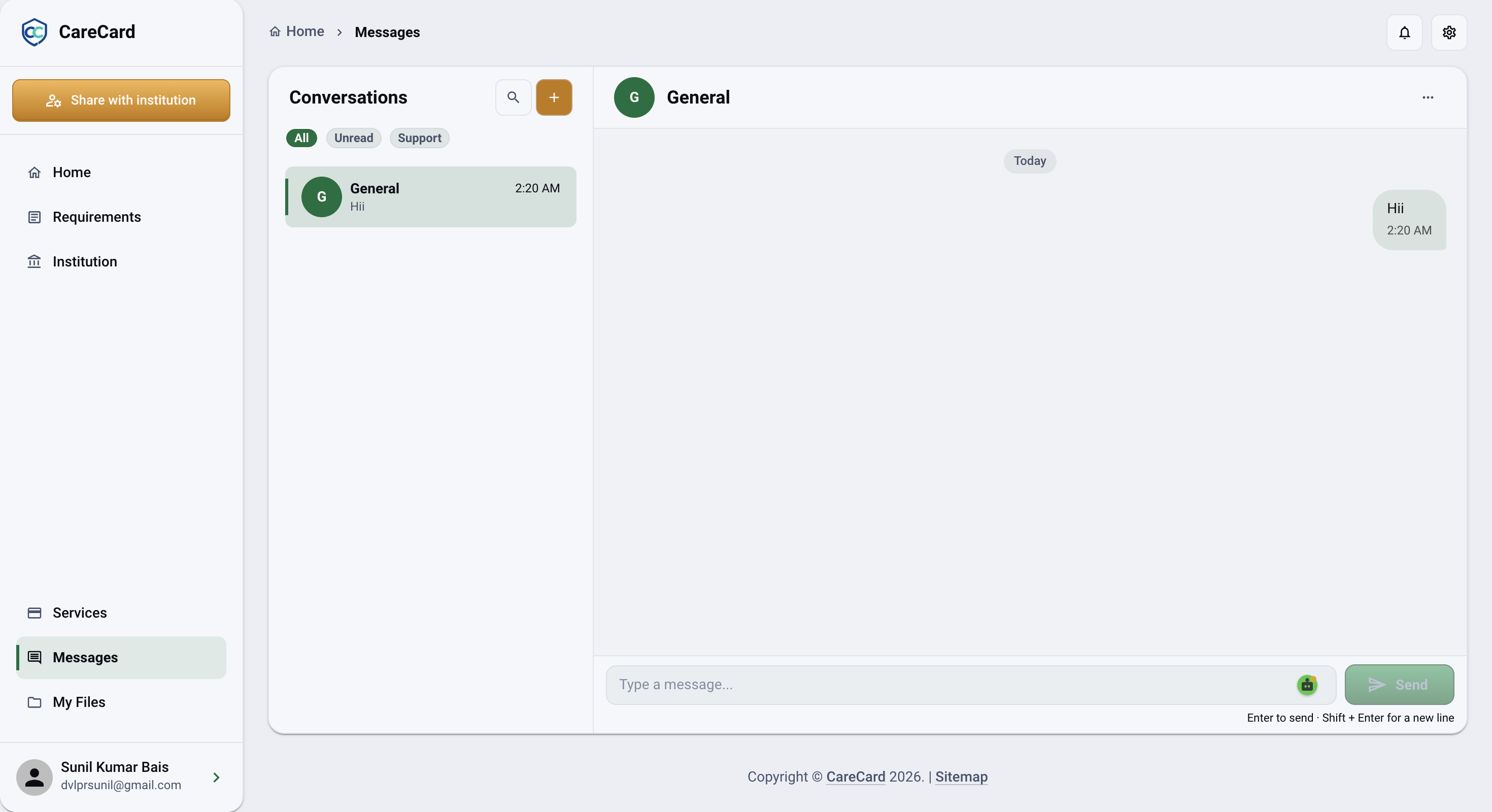
Type in the box at the bottom and select Send. Your message appears in the thread right away, grouped under a Today or Yesterday divider.
Quick-reply suggestions may appear below the box — they're optional shortcuts, so you can always type your own message instead.
You can also open a conversation about one document straight from the Requirements page — a requirement row's ⋯ menu has a Message action.
Leave a Conversation
Open the Conversation Actions menu at the top of a thread and choose Exit. This only removes the thread from your list — the conversation and its messages stay available to the support team and anyone else in it.
Getting Told About Replies
Inside CareCard, the notification bell in the top bar counts your unread replies across every conversation, and its Messages row brings you back here.
To control this, open Settings → Notifications and use the New messages switch. See Settings.