 CareCard
My Files
Store every file you upload in one place, then connect a stored file to the requirement that needs it.
My Files keeps every file you upload in one place. Upload a file once, then connect it to any requirement that needs it. Attach Existing on the Requirements page picks from this same list.
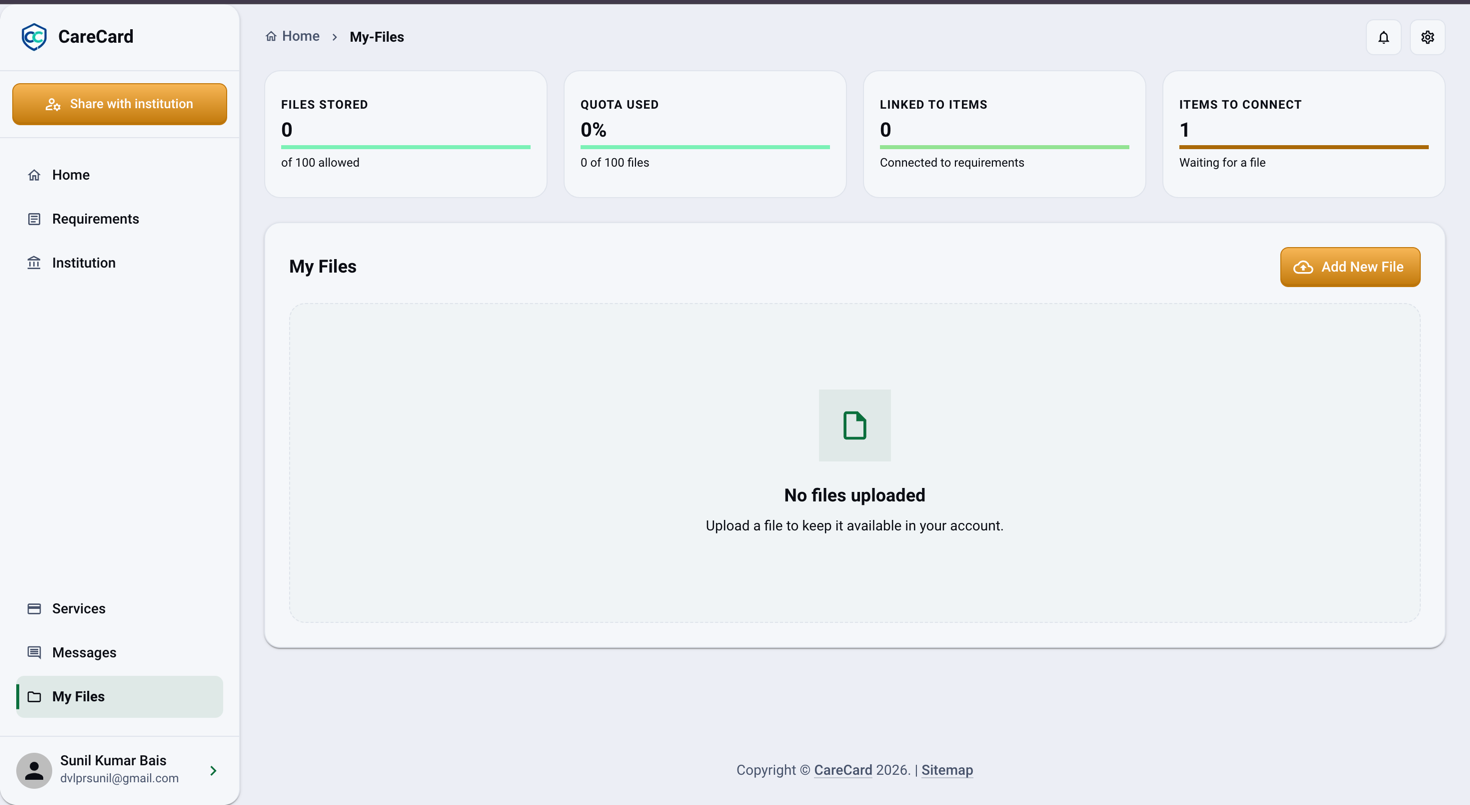
Open My Files from the Side Menu. Add New File sits at the top, and four cards ("Files overview") show where you stand:
- Files stored — How many files you have, of the maximum your account allows.
- Quota used — That count as a share of your limit.
- Linked to items — Files already connected to a requirement.
- Items to connect — Requirements still waiting for a file.
Your File List
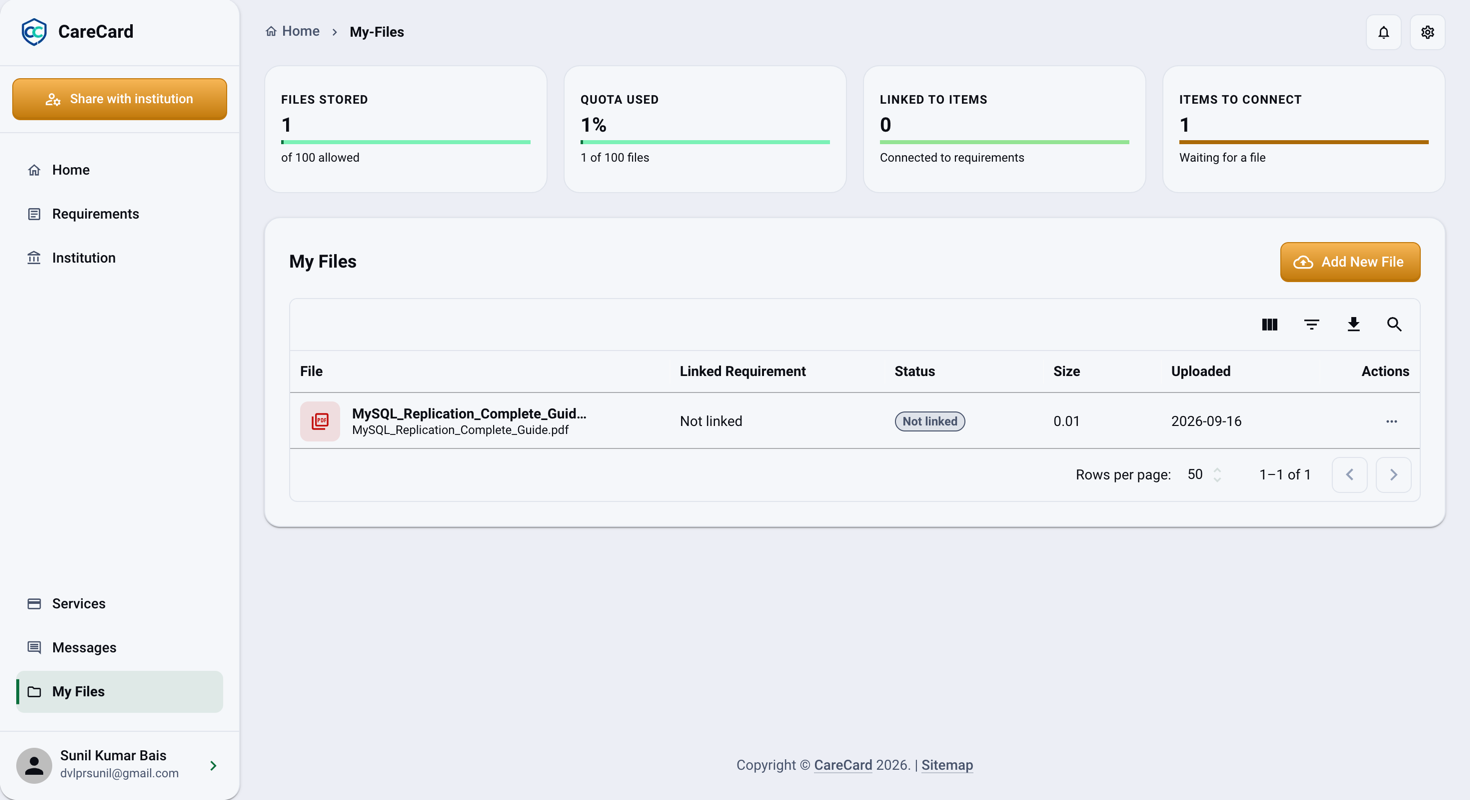
Each row is one file.
| Column | What it shows |
|---|---|
| File | The file's name and type |
| Linked Requirement | The requirement it's connected to, or Not linked |
| Status | The linked requirement's review status, or Not linked |
| Size | The file size in MB |
| Uploaded | When you added it |
| Actions | The ⋯ menu |
The Status column mirrors the requirement the file is linked to. See Requirements for what each status means.
Row Actions
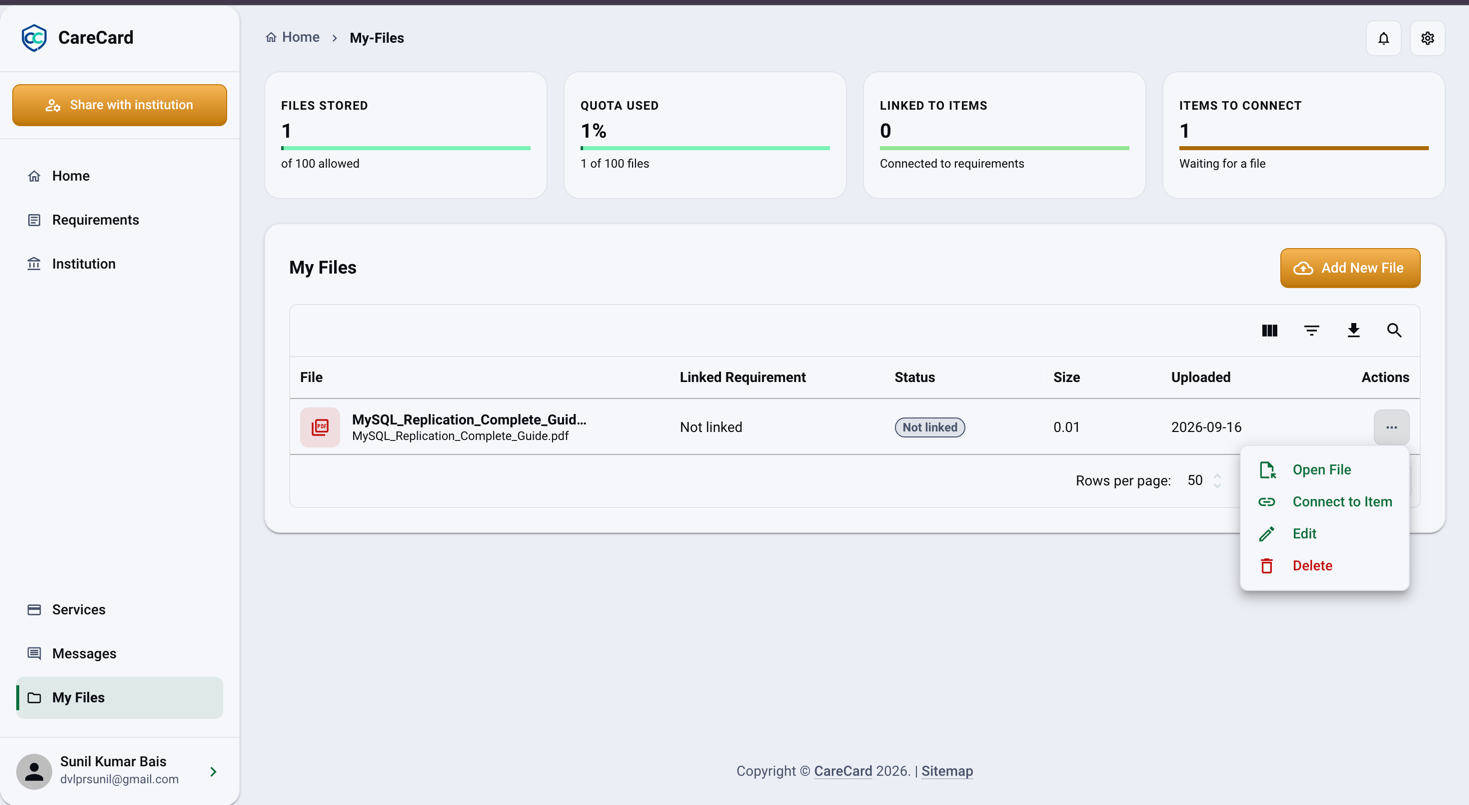
Open a row's ⋯ menu:
- Open File — Preview it. Some types can't be previewed.
- Connect to Item — Link it to a requirement.
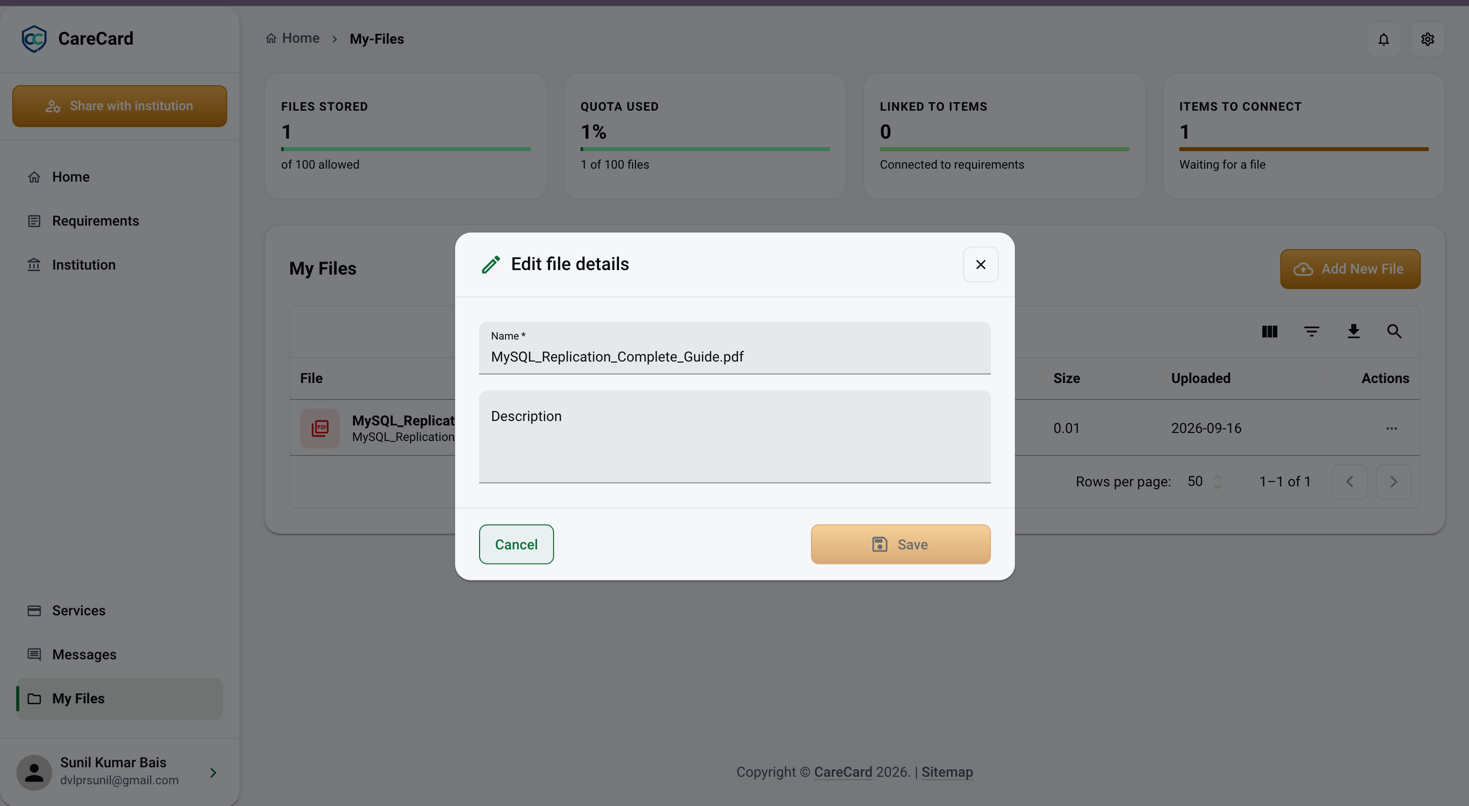
- Edit — Change its Name and Description.
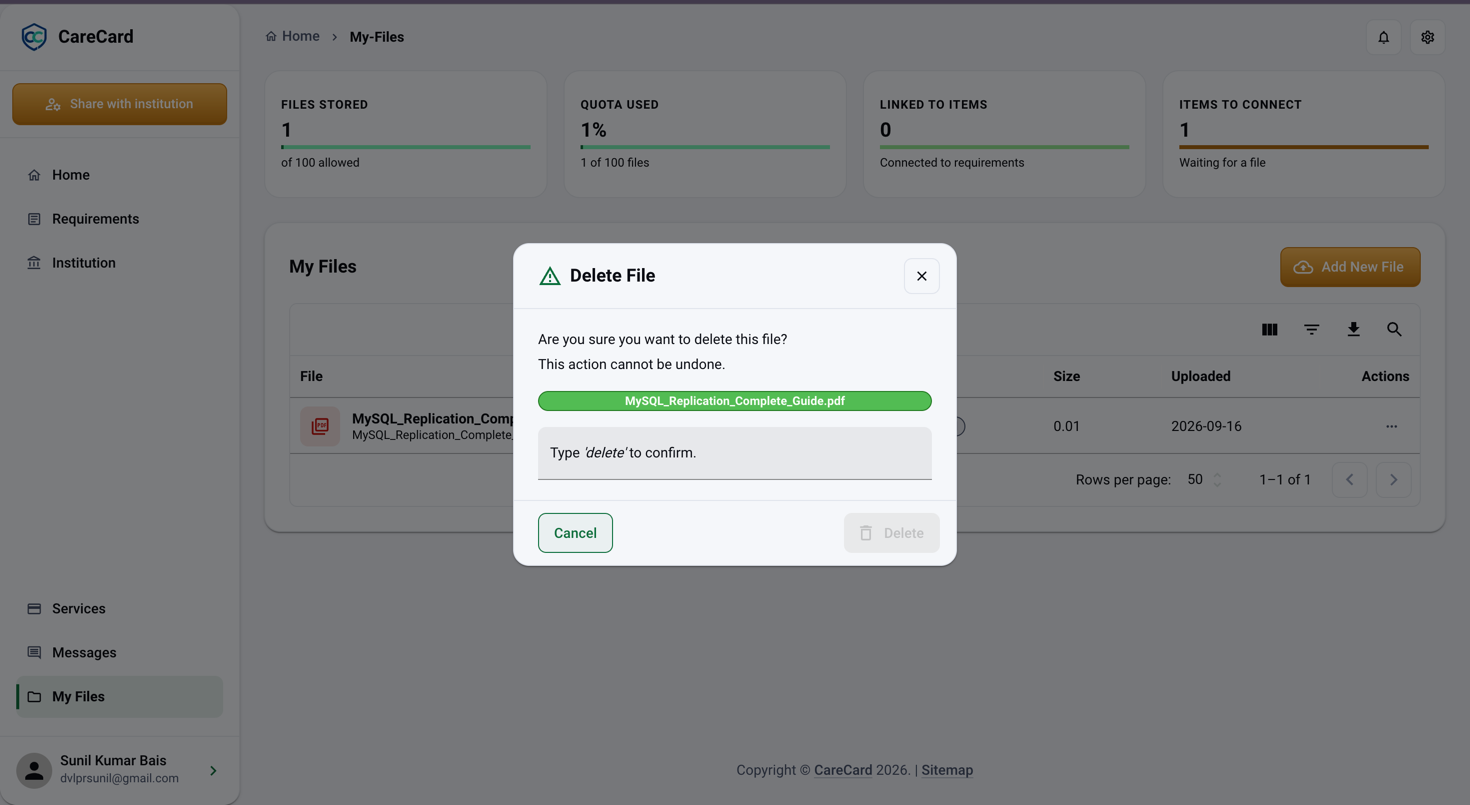
- Delete — Remove it from your files.
Note
A file linked to a submitted requirement is locked. Edit and Delete are hidden until that requirement is no longer submitted, so evidence under review stays safe.
Add a File
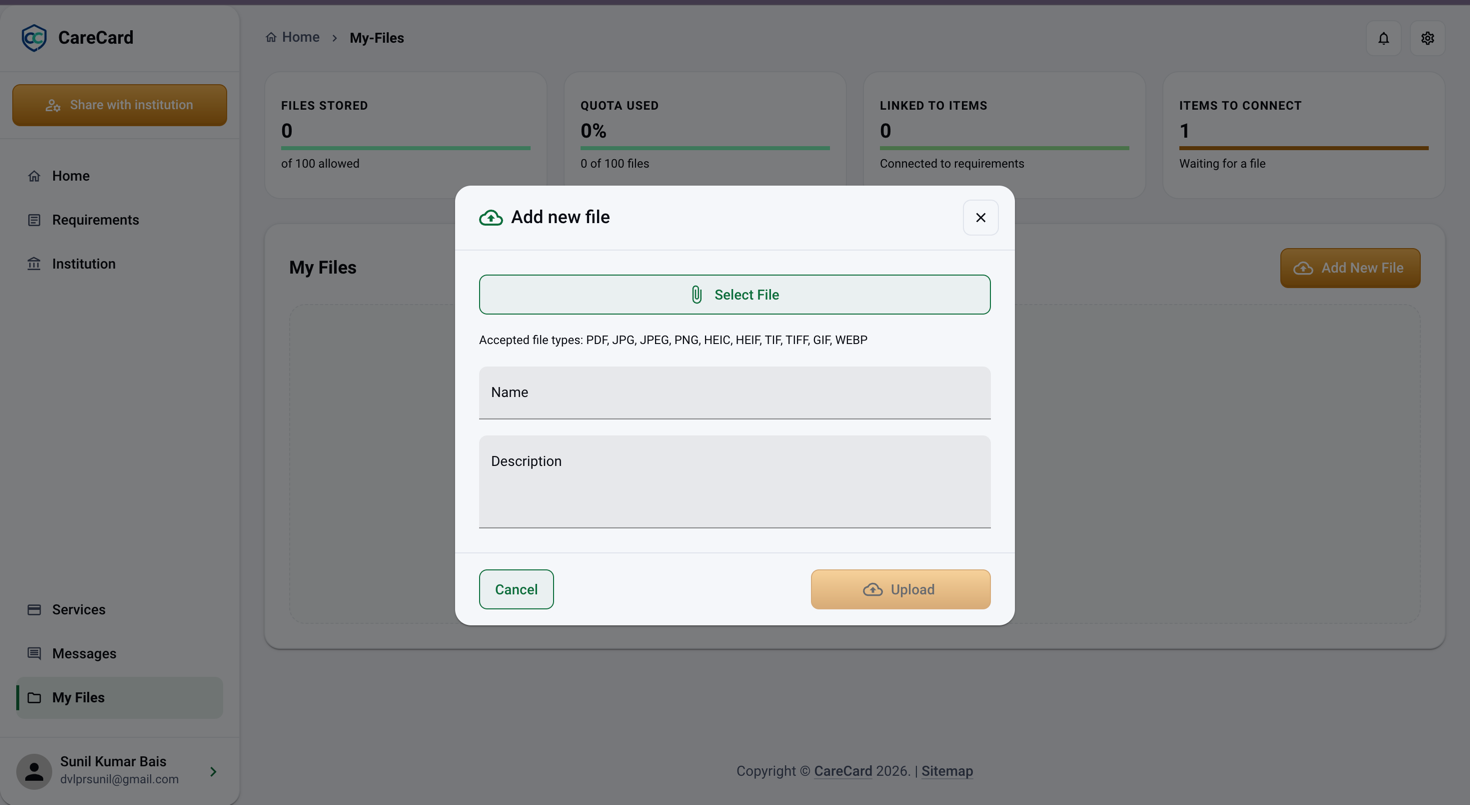
Select Add New File, then:
- Select File — Choose it from your device.
- Name and Description — Optional. Leave Name blank and CareCard uses the file's own name.
- Upload — It's stored in My Files right away.
You can upload PDF, JPG, JPEG, PNG, HEIC, HEIF, TIF, TIFF, GIF, and WEBP files, up to 50 MB each.
Connect a File to a Requirement
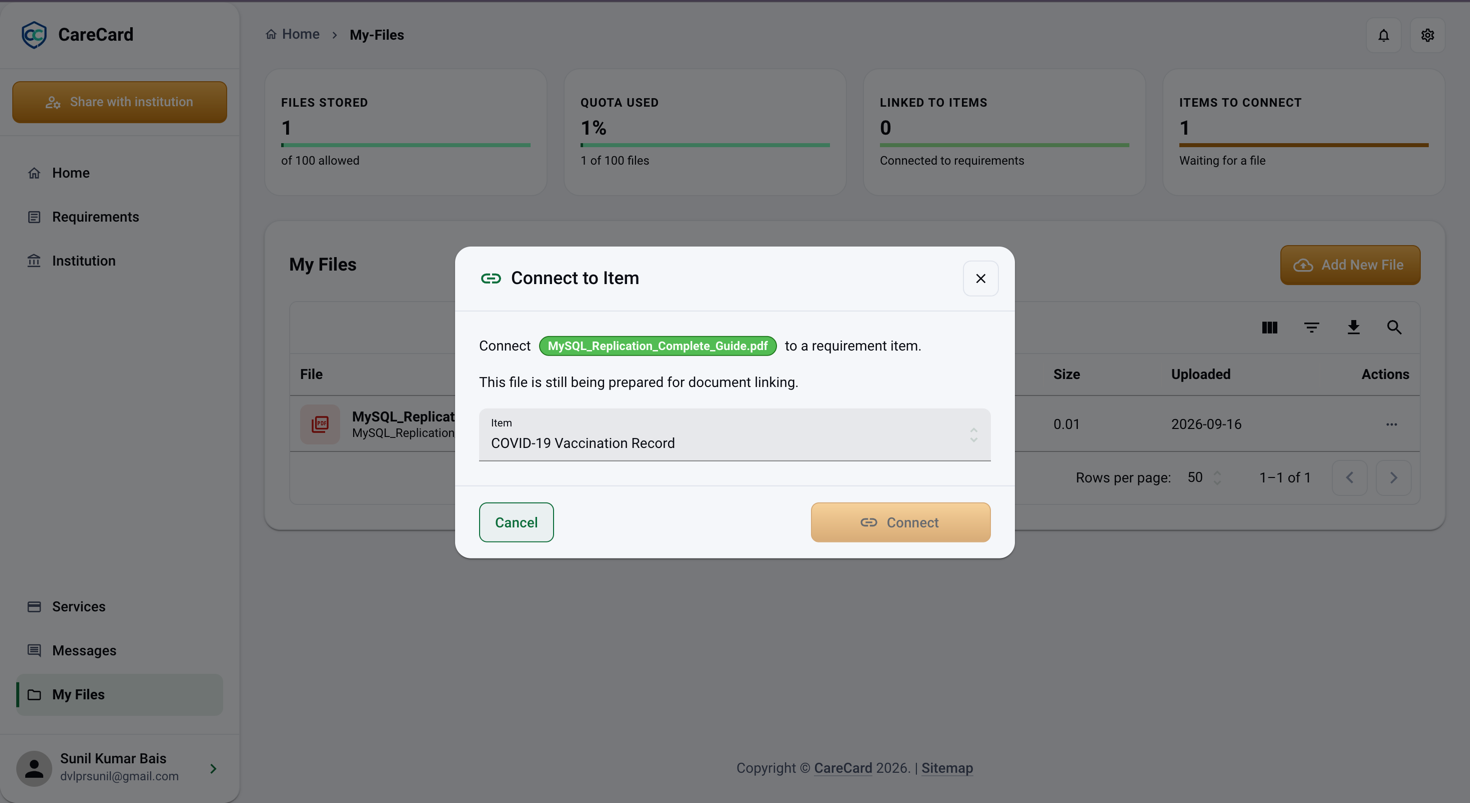
Adding a file stores it — it submits nothing. To make it evidence, choose Connect to Item, pick the requirement under Item, and select Connect. Only requirements still waiting for a file appear. If none are, the dialog reads There are no open document items to connect.
A file you just uploaded may say it's still being prepared for document linking. Wait a moment and try again — the file stays stored.
Edit and Delete a File
Edit changes only the Name and Description — the file itself doesn't change. Select Save.
Delete asks you to type delete to confirm. This can't be undone, and a locked file can't be
deleted.
Your File Limit
Your account holds a limited number of active files. Reach it and CareCard says You have reached the maximum number of active uploaded files and stops offering Add New File. To make room, delete an unlocked file you no longer need.