 CareCard
Updating Your Profile
Your Profile page — update your name, contact details, and identity.
Your Profile holds your Full Name, Date of Birth, contact details, and identity. Keep it current so messages reach you and reviewers can match your records.
Open Profile
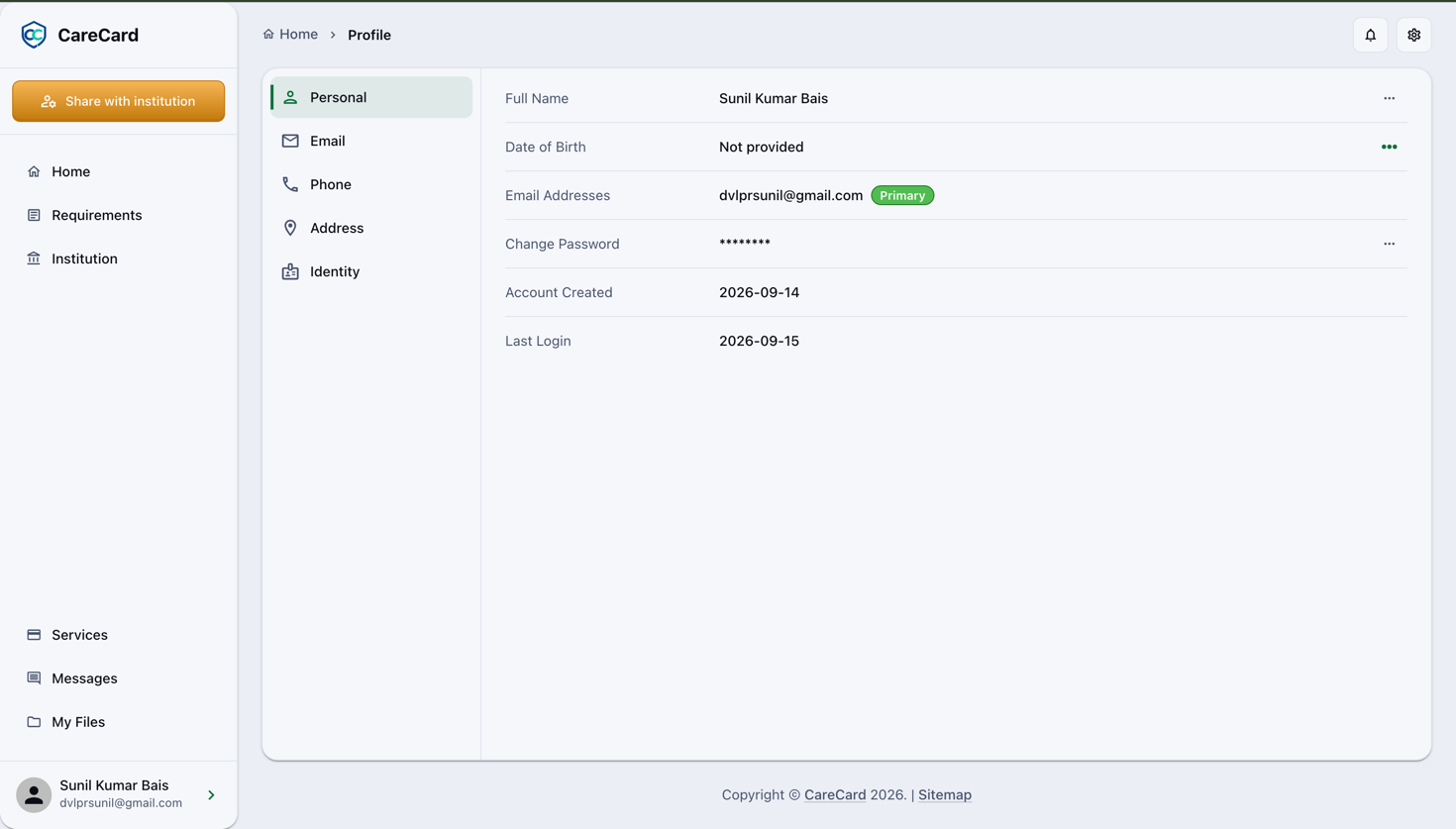
Open Profile from your account menu — your name at the bottom of the Side Menu. It has these tabs on the left:
- Personal — Your personal details, account info, and roles.
- Email — Your Email Addresses.
- Phone — Your Phone Numbers.
- Address — Your Addresses.
- Identity — Your identity numbers. This tab appears only for roles that use one.
Change Any Field
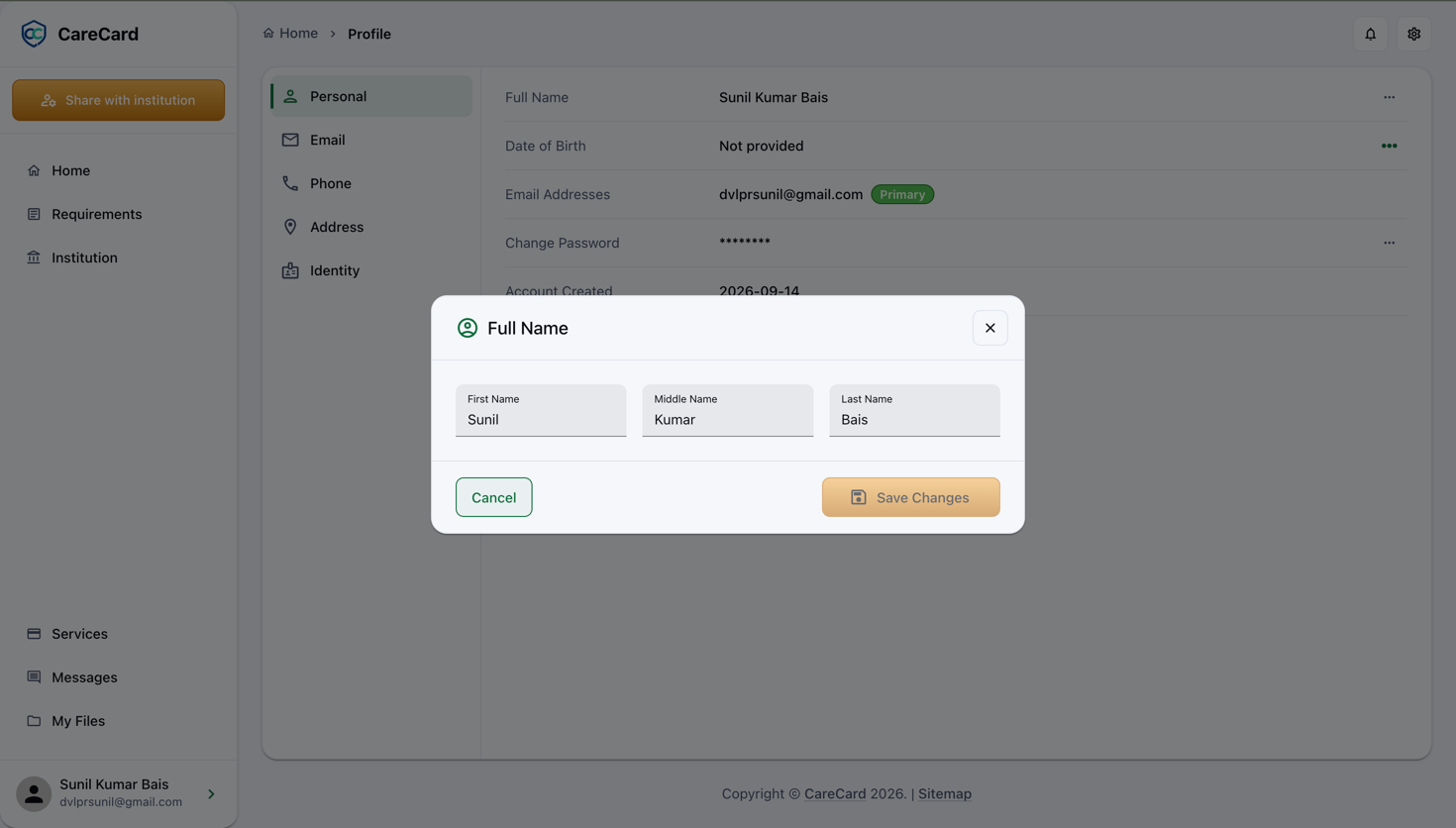
Most fields work the same way. Select the ⋯ at the end of a row, pick the action (for example Update Name), make your change, and save.
To add a new email, phone, address, or identity, use the ⋯ at the top of that tab.
The Personal Tab
Top to bottom, the Personal tab shows:
- Full Name — Change it with Update Name (First Name, Middle Name, and Last Name).
- Date of Birth — Shown masked, like
****/**/15; select the eye icon to reveal it. - Email Addresses — Your sign-in address, with a Primary chip.
- Change Password — Opens a dialog to set a new password.
- Account Created and Last Login — Dates, for your reference.
- Roles — Each role you hold, with its institution, campus, and program.
The 42-Day Rule
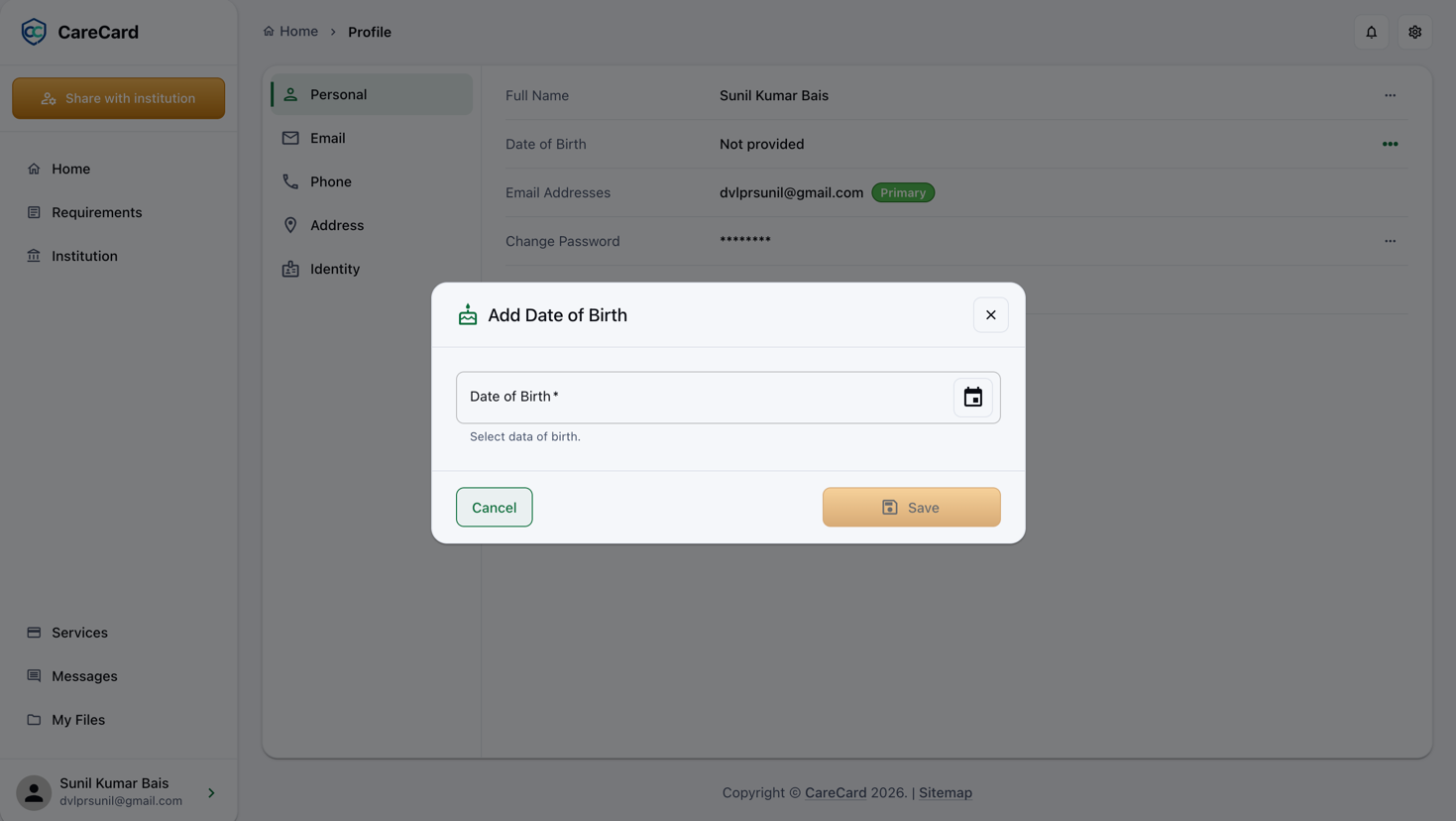
Your Date of Birth and each Identity entry can be corrected for 42 days after you save it. Adding either one the first time is always allowed. The clock starts when you save the value — not when you registered.
After 42 days, the edit option simply disappears — no error, no warning. Double-check your Date of Birth and identity numbers the first time. If a saved value is wrong after the window closes, contact support.
If your Date of Birth shows Not provided, select the green ⋯ to add it.
Each address shows a Verified or Unverified chip. Your sign-in address also shows Primary.
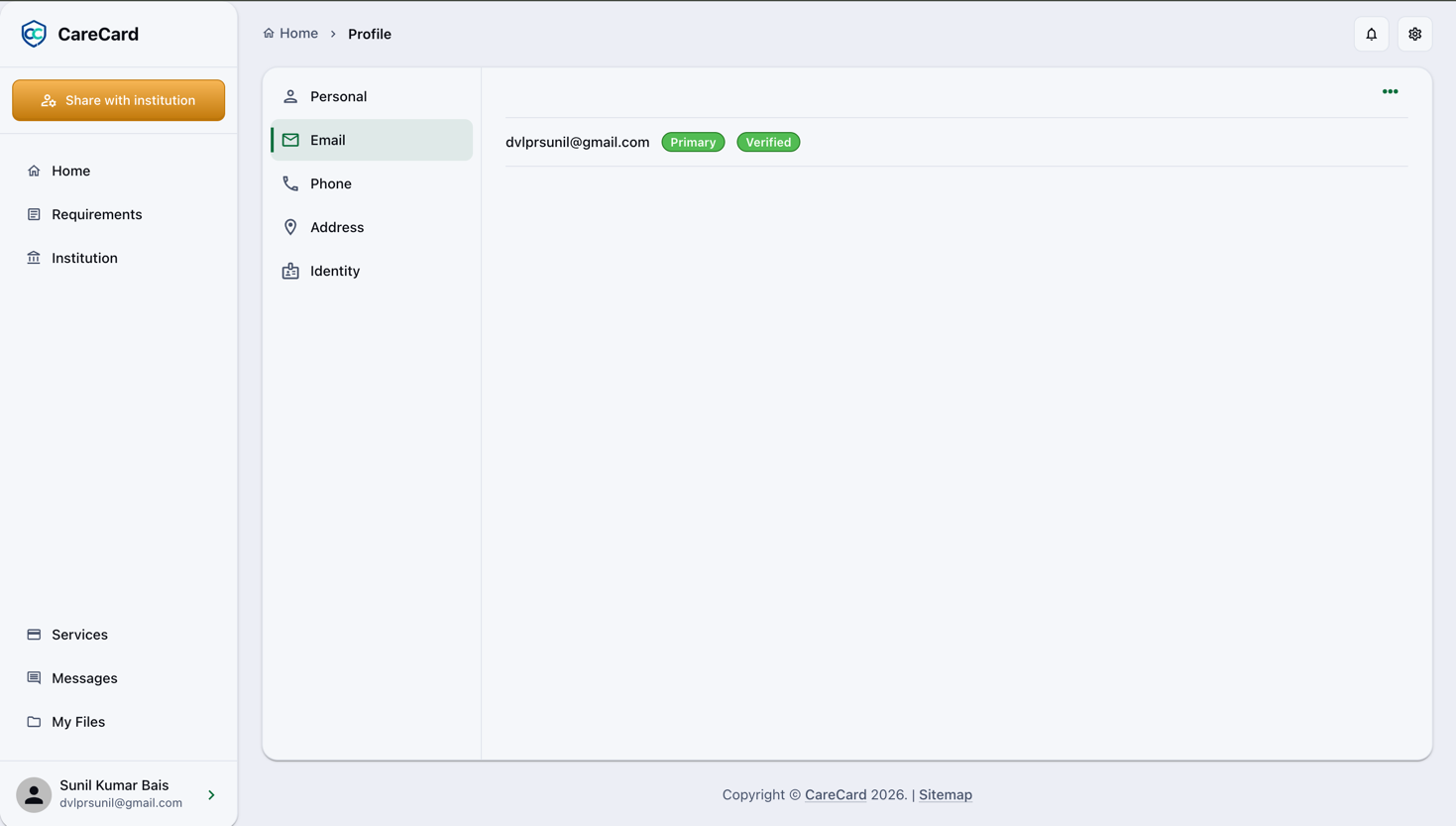
Select ⋯ → Add to add an address, then verify it with the code sent to it to earn the Verified chip. Keep signing in with your current address until the new one is verified. A verified secondary address offers Set Primary and Delete — your primary address cannot be deleted.
Phone
Select ⋯ → Add, choose the Phone Type — Cell, Home, Office, or Preferred — and enter the Country Code and Phone Number. Each number shows a Verified or Unverified chip; verify it with a one-time SMS code from its ⋯ menu.
Address
Select ⋯ → Add, choose the Address Type — Residence, Office, Permanent, or Correspondence — and fill in the Street Address, City, State, Postal Code, and Country.
Identity
The Identity tab appears for roles that use an ID number. It lets a coordinator match you to a pre-approval list.
Select ⋯ → Add, choose the Identity Type — Student No, Volunteer No, Employee No, Driving License No, or Other — then enter the Number and its Issuer. Like Date of Birth, each identity can be corrected only within 42 days.
Good to Know
- Enter your Full Name as it appears on your official records, so reviewers can match it to your uploads.
- Your Full Name, Email Addresses, Phone Numbers, and Addresses can change any time — no need to contact support.
Forgot your password? Log out and use Forgot your password? on the login page.